Claude Cowork Not Working? 9 Common Problems and Fixes
Claude Cowork hands Claude real work instead of just asking it questions. It reads and writes files in folders you choose, works across connected apps, and carries multi-step tasks through to a finished deliverable. When it works, it feels like having an extra colleague.
When it does not, the failure is rarely obvious — and that is what makes Cowork frustrating in a way ordinary chat never is. A task quietly stops. A file lands somewhere unexpected. Your usage limit vanishes before lunch.
Here are the nine problems people actually run into, and what to do about each one.
1. Claude Cowork is using too much of your usage limit
This is the number one complaint, and it is not a bug. Anthropic states plainly that Cowork consumes more of your usage allocation than chatting with Claude, because complex multi-step tasks are compute-intensive and need far more tokens to execute.
Pro subscribers describe hitting their cap after roughly ten minutes of Cowork use, then waiting hours for a reset. Others report buying extra credits every month to keep working. A single intensive session doing complex file operations can burn through as much quota as dozens of ordinary chat messages.
The fix: batch related work into one session instead of spreading it across five. Use standard chat for anything that does not need file access or extended execution — summarising, drafting, brainstorming. Be selective about which folders you connect, because pointing Cowork at a huge directory means it reads a huge directory. Check Settings > Usage to see where your allocation goes. If Cowork is central to your work, a higher plan tier usually costs less than constant interruptions.
If limits are your main problem, our guide on using Claude without hitting session limits covers the token habits that make the biggest difference.
2. Claude Cowork stopped working on your task
You come back after lunch and the task is dead. This one confuses people because the answer changed recently.
Cowork now runs sessions in the cloud, on Anthropic’s servers, so work continues if you close your laptop and you can open the same session from any device. But there is a catch: when a task needs something on your computer — a local file, your browser — Claude reaches it through the desktop app on that machine.
Update (October 2026): Since 6 October 2026, new Cowork tasks on Pro and Max plans run in the cloud, and the “Only on your computer” option in Settings > General has been removed. Tasks you had already started on your computer stay there and show a banner that they run only on this computer; you can keep working on them until they are done. For new work that must stay on your computer, Anthropic recommends Claude Code in the desktop app: open the old task, choose “Download task data”, open the unzipped folder in Claude Code and run /port-task-data. Source: Claude Help Center.
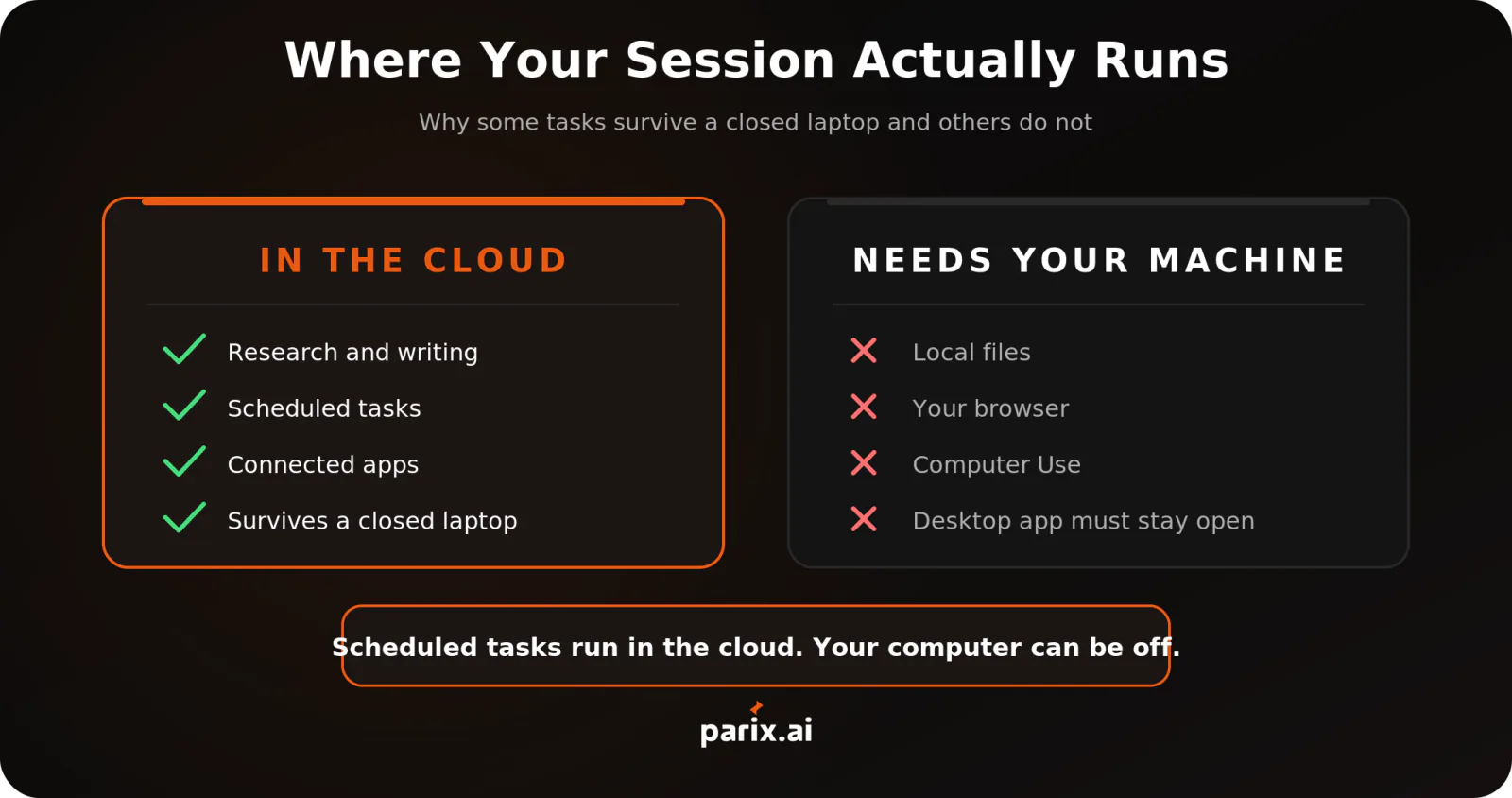
The fix: if your task touches local files or your browser, keep the Claude Desktop app open and your computer awake. If it is pure cloud work, close everything and check back later. Scheduled tasks run in the cloud regardless and do not need your computer on at all.
If you see “Setting up Claude’s workspace” instead, nothing is broken. That message means Cowork is updating itself to the latest version. Give it a minute.
A task that hangs rather than stops is a different problem. If Claude goes silent mid-answer, see why Claude stops responding and how to fix it.
3. Cowork cannot find your files, or saves them somewhere else
Claude reports success, you go looking, and the file is not there.
Two causes. Either Claude did not have permission to write where you assumed, or it wrote somewhere else entirely and told you so in a message you skimmed past.
The fix: check that you have granted file access to the right folder, then re-read what Claude said about the output location — it almost always names the exact path. Give explicit destinations in your prompt rather than assuming. “Save the report to my Documents/Q3 folder” beats “save the report.”
4. Claude Cowork not working on Windows: sandbox mount error
A specific and genuinely frustrating one. On Windows, Cowork can fail at startup with a sandbox mount error before the session ever begins, while ordinary chat mode works perfectly.
The most documented cause is OneDrive. Cowork tries to share your folder into its isolated environment using two different filesystem protocols — virtiofs and Plan 9 — and both fail against OneDrive’s storage layer, because OneDrive uses cloud placeholder files rather than normal Windows file access. Files that look local on your screen may not physically exist on your disk.
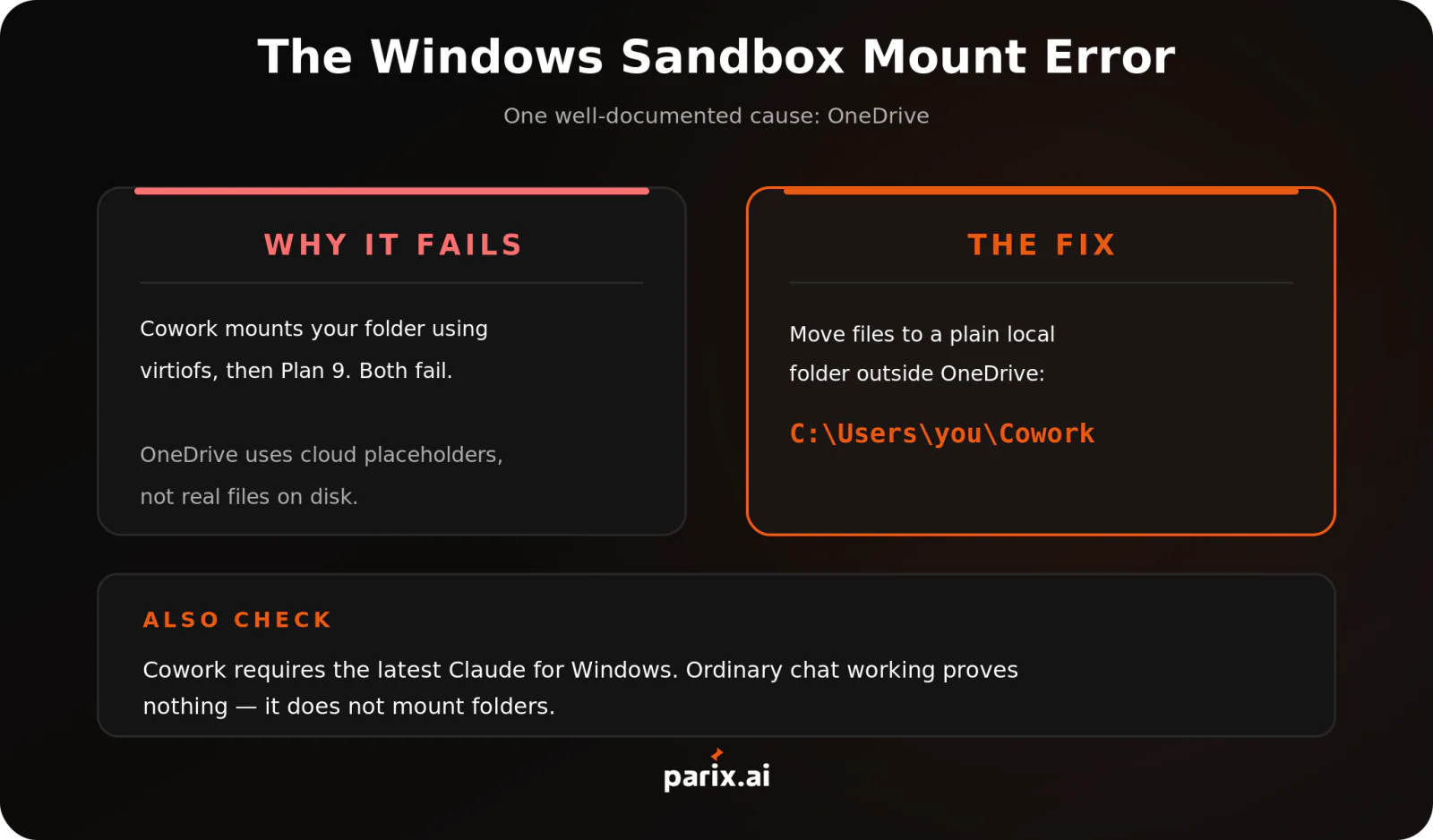
The fix: copy the files you need into a plain local folder outside OneDrive — something like C:\Users\you\Cowork — and point Cowork there instead. Move the results back when it has finished. Also confirm you are on the latest version of Claude for Windows, since Cowork requires it.
5. Worried Claude Cowork will delete your files
The story that spread fastest after launch was a user who asked Cowork to “clean up” a messy folder and reported losing 11GB of files. That fear is reasonable and worth taking seriously.
Anthropic has since added deletion protection. Claude requires your explicit permission before permanently deleting any files, and you have to select “Allow” on a prompt before it proceeds.
The fix: back up before pointing any agent at something irreplaceable. Avoid vague destructive verbs — “clean up,” “tidy,” “get rid of the junk” — because you and Claude may define junk very differently. Say what you actually want instead: “move files older than 2023 into an Archive folder.” And read deletion prompts properly rather than clicking Allow on reflex.
6. Choosing the wrong Cowork permission mode
Cowork has three modes controlling when Claude asks before acting, and most people never think about which one they are in.
- Manually approve (Manual) pauses and asks for approval on each action. Safe, but slow enough that people abandon it.
- Automatically approve (Auto) keeps working without stopping at every step, reviewing each action for safety and blocking anything it judges unsafe.
- Skip all approvals (Skip), until recently called "Act without asking," does not pause, and nothing checks its actions automatically.
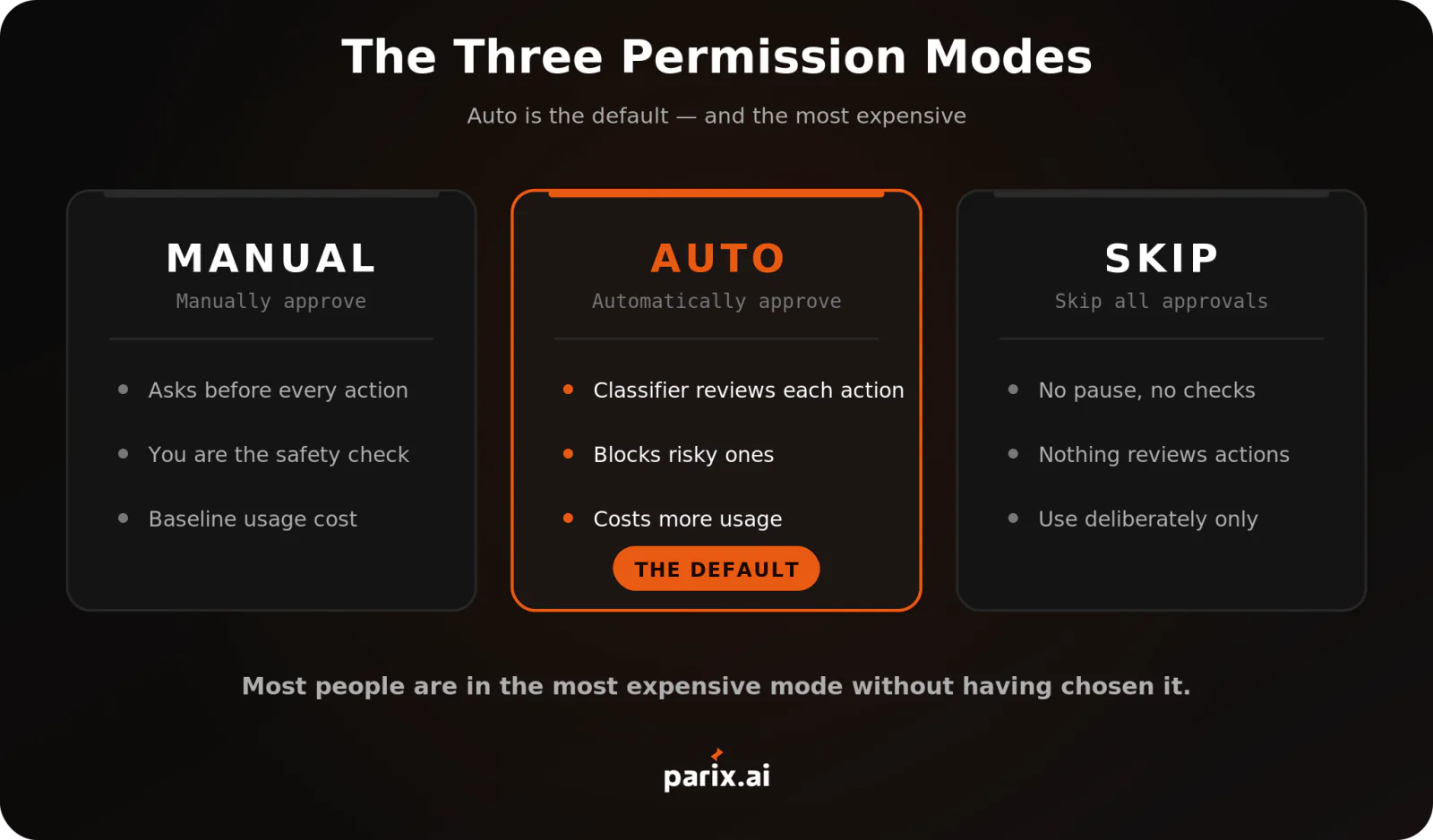
Three things worth knowing. First, Auto mode consumes more of your usage limit than the other modes, because that safety checking costs compute — so your mode choice feeds straight back into problem one. Second, in the Chrome side panel Auto is the mode you get unless you change it, and the panel remembers whichever mode you pick afterwards — so it is worth opening the panel to see which one you are actually in. Third, when Claude uses your computer directly there is no sandbox between Claude and what is on your screen, unlike file operations that go through permission checks.
The fix: use Manual for anything involving money, messages sent as you, or files that matter. Use Auto for routine multi-step work. Treat Skip as something you switch on deliberately for a task you fully trust, never as a default. Block sensitive apps such as banking portals so Claude does not see information you would rather keep private.
7. Cowork connectors failing or timing out
Google Drive, Calendar and similar integrations are inconsistent in community reports — Calendar authentication failing for some users, Drive timing out on large folders.
The fix: disconnect and reconnect the connector to force fresh authentication. Point Cowork at a specific subfolder rather than an entire Drive. Confirm the connector is actually switched on for that session using the “+” menu in the chat box. On Team and Enterprise plans, check with your admin, since organisations can restrict which connectors are available and require approval for write-capable tools.
8. Long Cowork tasks timing out on large files
Very large operations can time out mid-run, leaving you with partial results and a consumed usage allocation.
The fix: split the work explicitly. “First process files A through M, then I will ask about N through Z” is far more reliable than handing over 500 files at once. Very large files may need breaking into parts. Complex requests work better as a sequence of simpler ones, which also makes it easier to spot where things went wrong.
9. Cowork producing output that is confidently wrong
The most expensive failure is the quietest. It is not Claude visibly breaking — it is Claude producing something plausible enough that you keep moving. A reformatted spreadsheet with three transposed figures. A summary that quietly drops a caveat that mattered.
Chat has a natural checkpoint built in: you read the answer. Cowork does not, because the output is a finished file you tend to trust on sight.
The fix: spot-check outputs against sources, especially numbers. Re-run a known task occasionally to see whether quality has drifted after an update. For recurring work, keep one small reference example you can compare against. Cowork’s citations back to source files make verification faster than you would expect, so use them.
The honest summary
Most Claude Cowork problems fall into three buckets: usage limits, permissions, and unverified output.
Limits are managed by batching work and reserving Cowork for tasks that need file access. Permissions are managed by choosing the right mode and being specific about folders. Output is managed by not trusting a finished-looking file because it looks finished.
Treat Cowork like a capable new colleague in their first week — clear instructions, defined scope, and someone checking the work.
Working with Claude across other tools too? Our guide to fixing MCP “failed to connect” errors covers the other half of the setup, and you can try our free AI tools if you want to scope a workflow before automating it.
Key takeaways
- Cowork consuming your usage limit fast is not a bug. Anthropic documents that it uses more allocation than chatting, because multi-step tasks need far more tokens.
- Auto mode costs more than Manual or Skip, because the safety checking itself uses compute.
- Sessions run in the cloud and survive a closed laptop. But anything touching a local file or your browser needs the desktop app open on that machine.
- The Windows sandbox mount error has one well-documented cause: OneDrive. Move the folder somewhere local and it starts working.
- The failure that costs most is the quiet one. A finished-looking file gets trusted on sight in a way a chat answer never does.