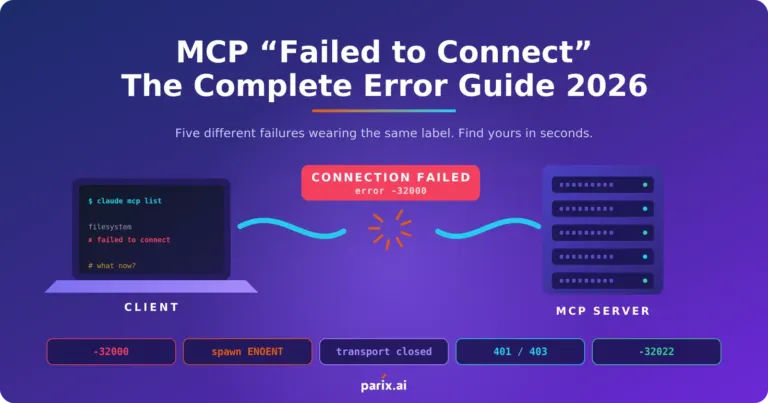
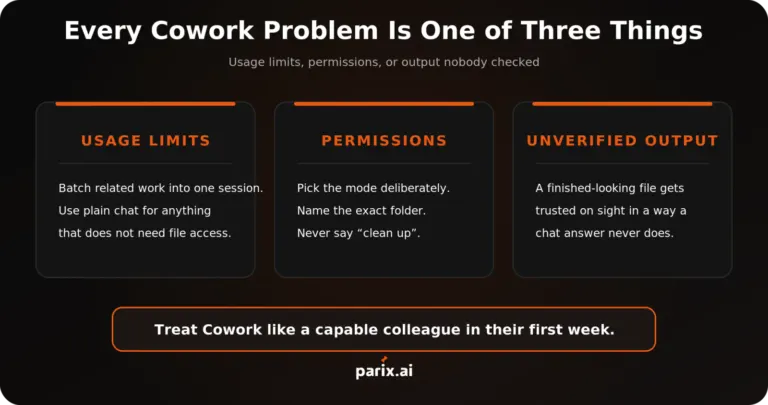
MCP Server Security: 12 Things to Get Right Before You Connect Anything
- Most MCP failures are not security failures but every one of them is a permissions question you did not answer.
- An agent is only as safe as the smallest scope you gave it. Grant the narrowest access that still lets the job finish.
- “Connected” does not mean working. Auth can fail while the connection succeeds, leaving you with a green status and zero tools.
- Logs must go to stderr. Anything written to stdout corrupts the protocol stream and produces errors that look like network problems.
- Decide the human checkpoint before you go live, not after something irreversible happens.
Connecting an AI model to your real systems through MCP is the point where a helpful assistant becomes something that can change your data. That shift deserves twelve deliberate decisions, not a copied config file.
This checklist covers what to get right before you connect anything: scope, permissions, transport, logging, timeouts, and the specific errors that hide real problems behind misleading messages. Every command and error string here comes from live documentation or real reported issues.
Before anything else: rule yourself out
Start with one command. Run the exact launch command from your config in a plain terminal.
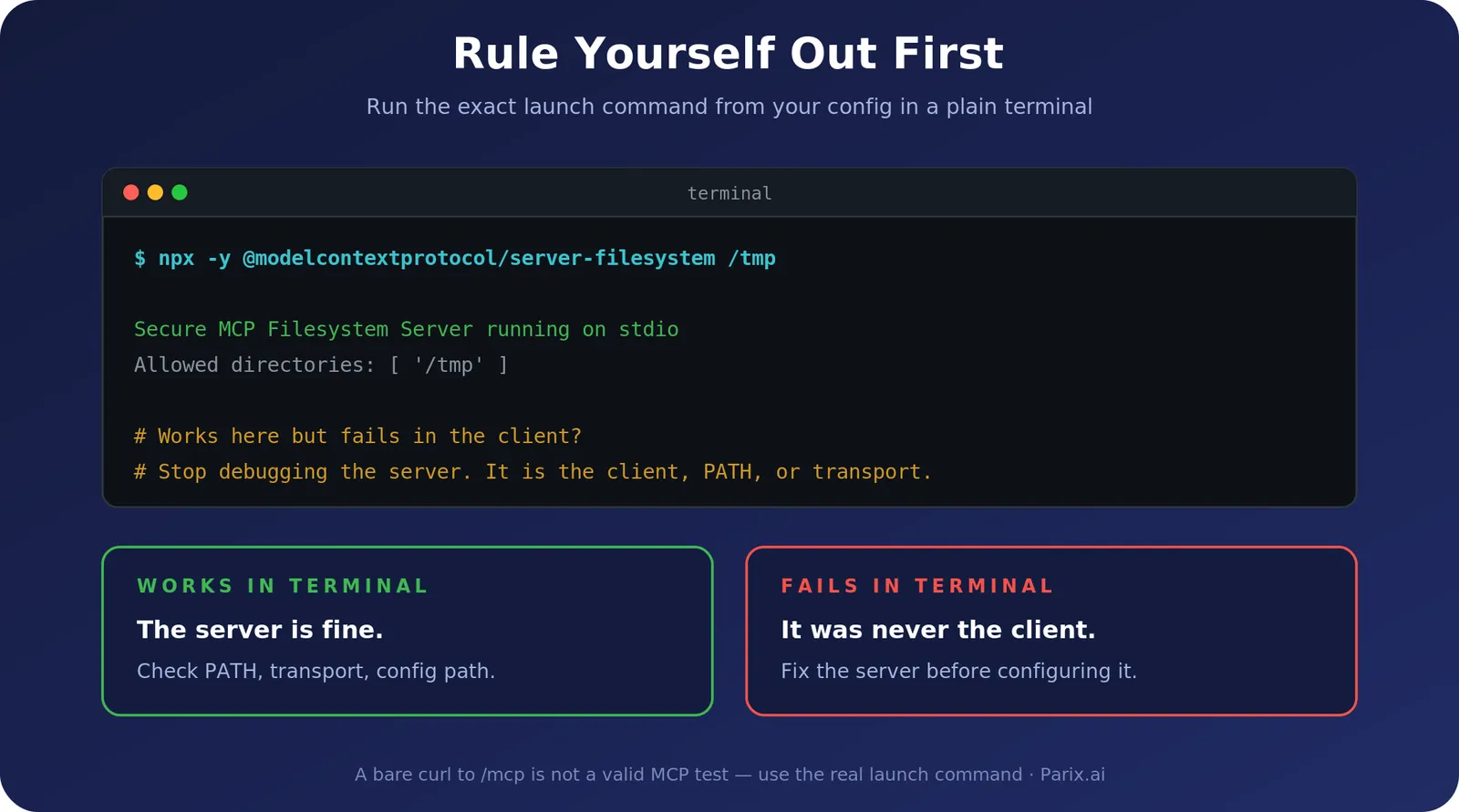
npx -y @modelcontextprotocol/server-filesystem /tmpIf it starts cleanly there but fails inside your client, stop debugging the server. The problem is your client, your PATH, or your transport. If it fails here too, fix the server before you configure anything.
One warning worth repeating: a bare curl to your /mcp endpoint is not a valid MCP test. It can return a method or transport error even when the endpoint and credentials are perfectly correct, because a browser request is not an MCP initialization handshake. Verify through the client’s connector status and an actual tool request instead.
1. Decide what the server is allowed to reach
Scope first, before anything runs. A filesystem server pointed at your home directory is a different risk from one pointed at a single project folder. Notice that the terminal output above prints Allowed directories: [ '/tmp' ] — that boundary is the security control, and it is set at launch.
Ask three questions for every server you add:
- What is the narrowest scope that still lets the job finish?
- Does the scope include anything that would be expensive to leak, change or delete?
- If this server were compromised tomorrow, what is the blast radius?
2. Never let the agent exceed the user’s own permissions
An assistant acting on someone’s behalf should inherit that person’s access rights and never exceed them. This sounds obvious and is one of the most common gaps in early deployments, because it is easy to give the server a powerful service account during development and forget to scope it down.
If your sales rep cannot see other regions’ pipeline in the CRM, the agent acting for that rep must not see it either.
3. Define the human checkpoint in advance
“The AI does it and someone reviews it” is not a design. Decide, before launch, which cases pause and who they go to.
The principle worth copying is one we built into Donor Bridge, an integration that syncs donations between two systems and matches donors across them: a confident match is written automatically, and anything the system is not sure about pauses for a human instead of guessing. The integration was designed to fail safely rather than confidently.
Write your rules down as three lists: what the agent does alone, what it proposes for approval, and what it must never touch.
4. Keep secrets out of your config file
API keys pasted directly into .mcp.json end up committed, shared in screenshots and copied between machines. Pass them as environment variables instead:
claude mcp add --transport stdio --env API_KEY=your_key my-server -- npx -y @scope/packageThis matters for a second reason that is easy to miss. Some clients establish a connection even with an invalid API key — the server responds, so the client reports connected, but the tool list comes back empty because authentication failed. Green status, no tools, no error message.
5. Make sure you can prove what the agent did
Every tool call should be recorded: what was called, with what arguments, by whom, and what came back. You cannot debug what you did not record, and you cannot answer a client’s “what happened to this record” without it.
This is also where the most common protocol error comes from, which brings us to the next point.
6. Send logs to stderr, never stdout
This one line prevents the single most common MCP error.
MCP’s stdio transport uses stdout exclusively for JSON-RPC messages. Any other output — a debug print, a startup banner, a stray console.log — corrupts the message stream. The client then reports a connection failure, and you spend hours checking your network when the actual problem is a log line.
If you see MCP error -32000: Connection closed, check your logging destination before anything else.
7. Choose the transport deliberately
The transport decides how failures behave, and this catches people out constantly.
| Transport | Behaviour on failure |
|---|---|
| HTTP / SSE | Retries a failed first connection up to 3 times on transient errors. Reconnects mid-session with exponential backoff, up to 5 attempts starting at a 1-second delay |
| stdio | Does not reconnect at all. No retry on first failure either. If the process dies mid-session, you restart the client |
| WebSocket | No retry on first connection, but does reconnect if the connection drops mid-session |
One detail worth knowing: HTTP and SSE servers do not retry authentication or not-found errors. Those are treated as your problem to fix, not a transient blip.
A related mistake worth stating plainly: a remote connector cannot reach your laptop. Remote HTTP connectors are fetched from the vendor’s cloud, so a 127.0.0.1 address is unreachable no matter how carefully you configure it. Local servers are a different mechanism — they run as a process on your own machine over stdio. Pick the right one for where your server actually lives.
8. Fix the PATH problem before it bites
The most misleading error in MCP is Server disconnected, because it is not the real error. The real one is underneath: the client never found npx, node or uv.
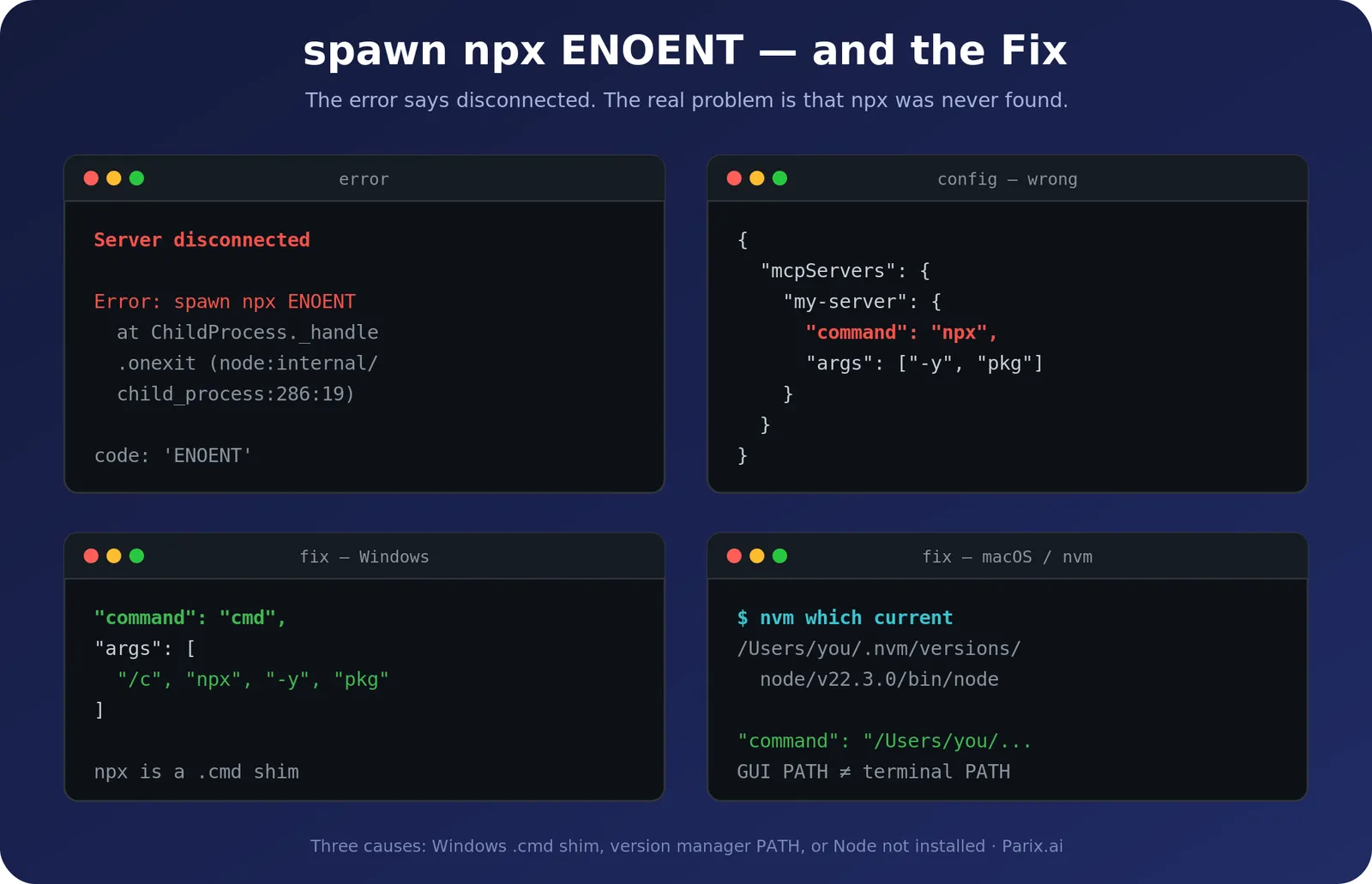
There are three separate causes, and they need different fixes.
On Windows, npx is a .cmd shim, not a binary. Node’s spawn cannot run it directly:
{
  "mcpServers": {
    "my-server": {
      "command": "cmd",
      "args": ["/c", "npx", "-y", "@scope/package"]
    }
  }
}
With a version manager — nvm, mise, Homebrew — Node lives outside the PATH that GUI apps inherit. Your terminal finds it; your desktop client does not. Use an absolute path:
nvm which current
# /Users/you/.nvm/versions/node/v22.3.0/bin/node
Third possibility: Node simply is not installed. npx ships with it.
Python servers using uvx sidestep the Windows shim problem entirely, which is worth knowing when you get to choose.
9. Watch the tool count
More tools is not better. Every connected server’s tool definitions load into context, and past a certain point selection accuracy drops before anything else goes wrong.
Tool search is enabled by default, which means a server can be connected and reporting tools while none of them are actually loaded into the conversation yet.
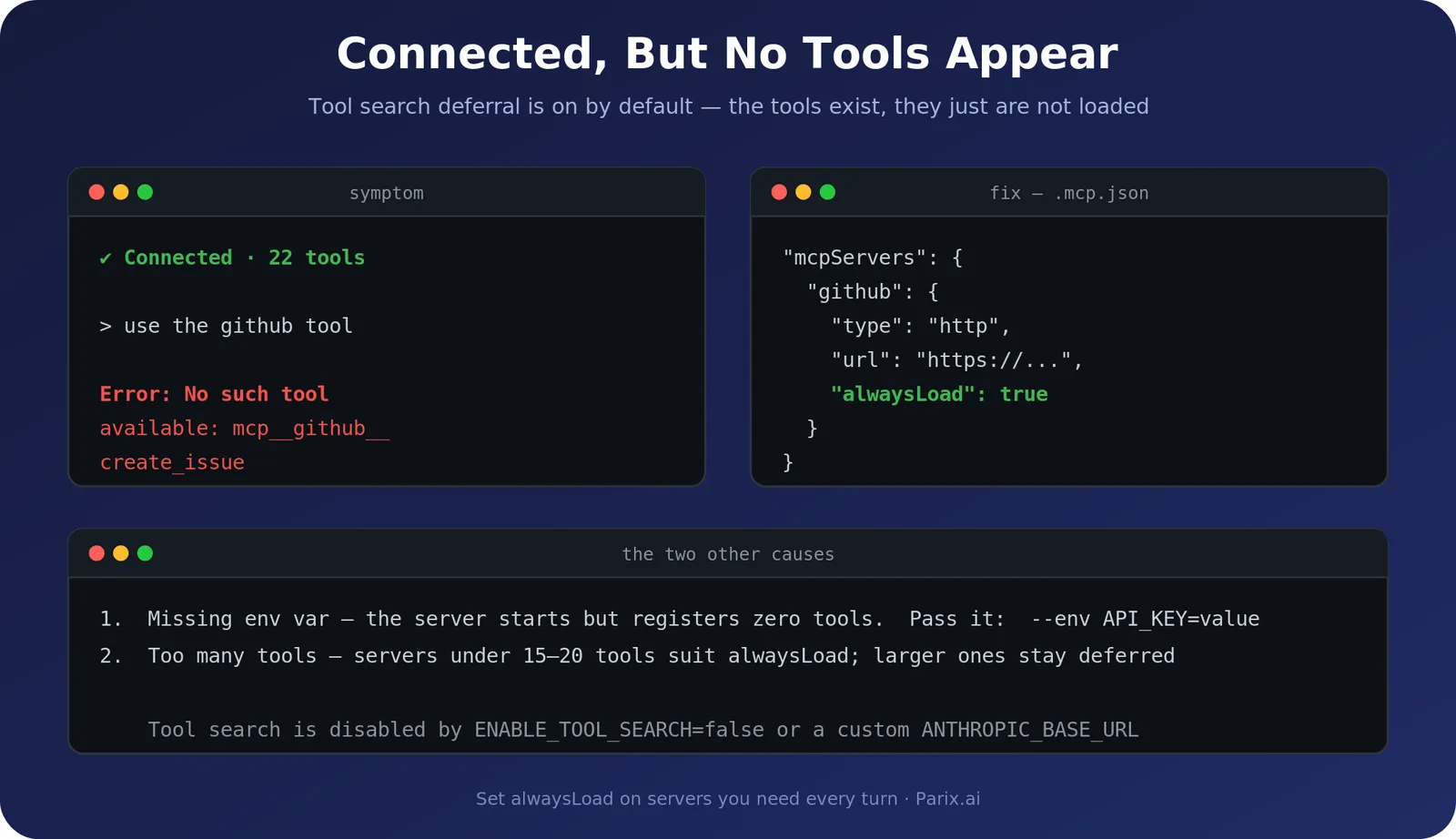
If a server’s tools are needed on every turn, exempt it from deferral:
{
  "mcpServers": {
    "github": {
      "type": "http",
      "url": "https://api.githubcopilot.com/mcp/",
      "alwaysLoad": true
    }
  }
}
Use it sparingly. Every always-loaded tool consumes context that tool search could otherwise have spent surfacing a more relevant tool. Servers with a small, focused tool set are the sensible candidates; large ones are better left deferred.
Tool search does not run everywhere, which is worth knowing before you rely on it. It is off with a custom ANTHROPIC_BASE_URL, with ENABLE_TOOL_SEARCH=false, on Amazon Bedrock, on Claude Platform on AWS, on Microsoft Foundry, on sessions signed in through a Claude apps gateway, and on Google Cloud’s Agent Platform with a model older than the Claude 4.5 generation. In those cases the client waits for servers instead of searching tools.
10. Set timeouts you have actually thought about
There are three separate clocks, and confusing them wastes a lot of time.
Startup. If a server is legitimately slow to start, raise the startup timeout rather than assuming it is broken:
MCP_TIMEOUT=15000 claudePer tool call. Set a hard wall-clock limit per server with the timeout field, in milliseconds:
"timeout": 600000One trap here: a value below 1000 is ignored entirely. It falls through to MCP_TOOL_TIMEOUT, or to that variable’s default of roughly 28 hours when it is unset. A timeout you thought you had set to one second becomes no practical limit at all.
Idle. A tool call that sends no response and no progress notification for the idle window aborts rather than waiting out the wall-clock limit. The default is five minutes for HTTP, SSE, WebSocket and connector servers, and 30 minutes for stdio. CLAUDE_CODE_MCP_TOOL_IDLE_TIMEOUT controls it in milliseconds, and 0 disables the check.
Then decide the other half: what should happen when a tool call takes too long. A run that hangs indefinitely is worse than one that fails clearly.
11. Plan for expiring credentials
OAuth tokens expire. API keys get rotated. Neither is an emergency if you planned for it, and both look like mysterious breakage if you did not.
Know what your client shows when auth lapses. In Claude Code it is a distinct status, not a generic failure, and there are commands built for exactly this:
claude mcp login <name>    # complete the OAuth flow
claude mcp logout <name>   # clear stored credentials
12. Learn what each status actually means
Before you debug anything, run:
claude mcp list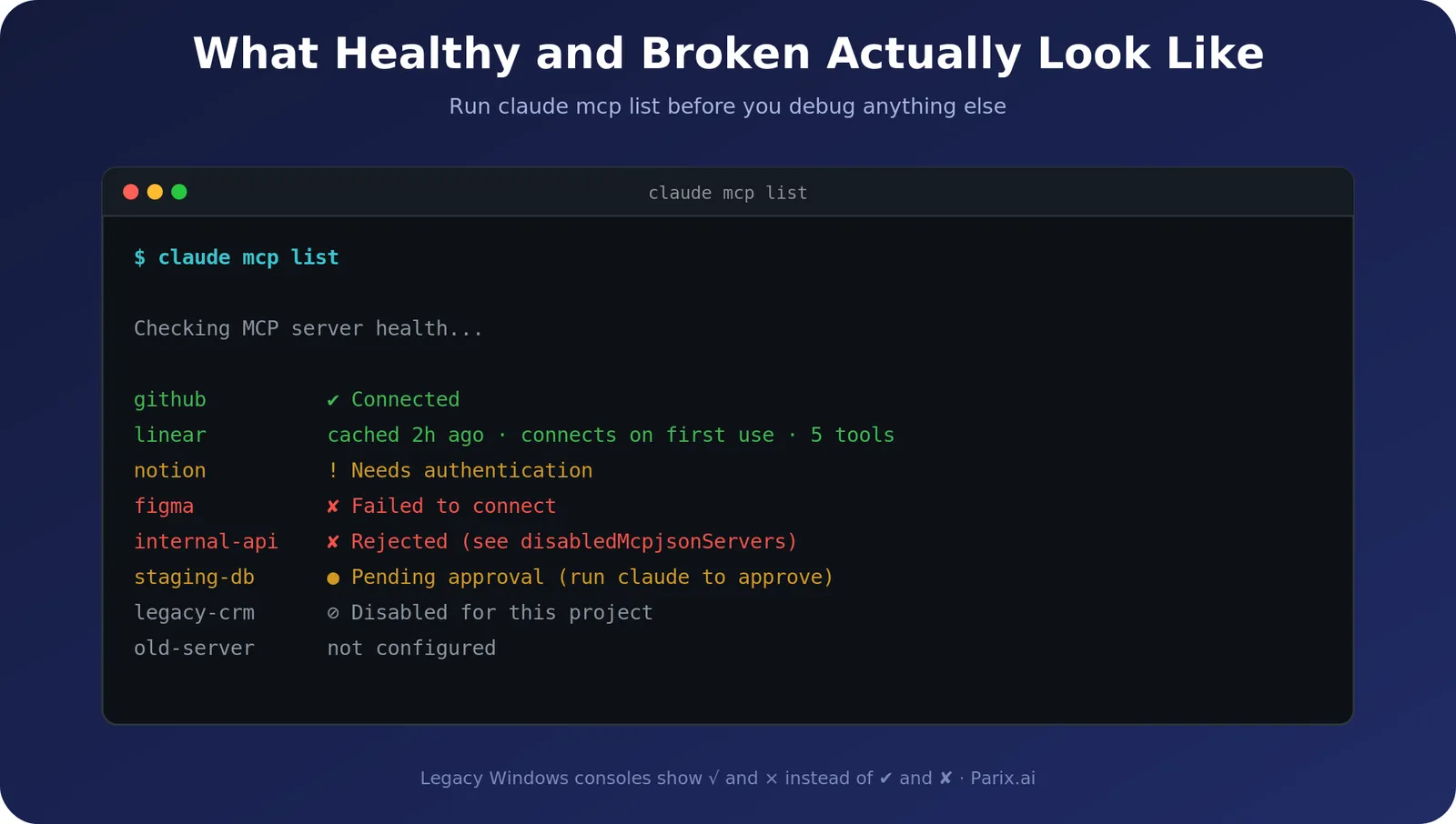
Each status points somewhere different:
| Status | Where to look |
|---|---|
| ✔ Connected | Working |
| ! Needs authentication | Sign in or refresh the token, not a config problem |
| ✘ Failed to connect | Server did not respond — check command, PATH, URL |
| ⏸ Pending approval | Project-scoped server from .mcp.json awaiting approval |
| ✘ Rejected | Blocked by disabledMcpjsonServers in settings |
| ⊘ Disabled for this project | Turned off deliberately — re-enable via /mcp |
| cached · connects on first use | Remote server with a discovery cache; it connects when a tool is first called |
| not configured | The server entry has an empty url |
One quirk that confuses people: legacy Windows consoles show √ and × instead of ✔ and ✘, because they cannot render those glyphs. And WebSocket servers do not appear in this list at all.
Useful companions:
claude mcp get <name>              # full config for one server
claude mcp remove <name>           # remove it
claude mcp reset-project-choices   # re-prompt for project approvals
And check your config is where you think it is. Claude Code reads ~/.claude.json for user and local scope, and a project’s .mcp.json for project scope. Two different settings keys control which servers connect, and they are not interchangeable. disabledMcpServers is an opt-out list for user-configured, plugin and connector servers. disabledMcpjsonServers is a rejection list that applies only to servers defined in a project’s .mcp.json — a server declared in ~/.claude.json under user or local scope is untouched by it. Both live in ~/.claude/settings.json or the project’s .claude/settings.json. It does not read ~/.claude/mcp.json, ~/.claude/config/mcp.json, or %APPDATA%\Claude\mcp.json, all of which people create regularly.
When it is genuinely not your fault
Every troubleshooting guide assumes your config is broken. Often it is not.
Vendor-side MCP outages happen, and status pages frequently do not cover MCP endpoints — so the vendor’s dashboard can show all-green while their MCP server is failing. If your setup worked yesterday, nothing changed on your side, and other people are reporting the same symptom on the same day, stop debugging and go looking for confirmation.
If the symptom is Claude itself stalling rather than a server failing to connect, that is a different problem with different fixes — our guide on what to do when Claude stops responding covers it.
Two things that resolve this class of problem: kill any lingering server processes, and clear the local auth or session cache before re-authenticating. Stale, de-synced sessions cause failures that look exactly like broken config.
Fixing it once versus fixing it for good
Everything above is a one-time fix. That is fine if it happens once.
If your integrations break weekly — tokens expiring unnoticed, a server dying with no alert, tool calls failing silently in production — that is not a configuration problem. It is missing architecture: no monitoring, no retry policy, no defined failure behaviour, no audit trail.
That is the layer our AI integration services build, and it is the same discipline behind the automation work in our case studies. If you are weighing whether to build it in-house, our guide on what AI integration actually involves covers the wider picture.
Frequently asked questions
What is MCP server security?
MCP server security is the set of controls around an AI model’s access to your systems: what the server can reach, whether the agent inherits the user’s permissions or exceeds them, which actions require human approval, where credentials live, and whether every tool call is recorded.
Why does my MCP server show connected but no tools?
Three common causes. Authentication failed while the connection still succeeded, so the tool list came back empty. A required environment variable is missing, so the server registered no tools. Or tool search is deferring them, which is expected behaviour — set alwaysLoad: true for a server whose tools you need on every turn.
What causes “spawn npx ENOENT”?
The client could not find npx. On Windows, npx is a .cmd shim that needs cmd /c. With a version manager like nvm, Node sits outside the PATH that GUI apps inherit, so an absolute path is required. Or Node is not installed at all.
What causes MCP error -32000: Connection closed?
Most often the server is writing logs to stdout. MCP’s stdio transport uses stdout exclusively for JSON-RPC messages, so any other output corrupts the stream. Send all logging to stderr.
Should I use stdio or HTTP for my MCP server?
HTTP and SSE servers retry a failed first connection up to three times and reconnect mid-session up to five times with exponential backoff. stdio servers do neither — if the process dies, you restart the client. Choose based on how you want failures to behave, and remember that a remote connector cannot reach a localhost address.
How many MCP tools is too many?
Every connected server’s tool definitions consume context, and selection accuracy degrades before anything visibly breaks. Tool search exists to manage this, so leave large servers deferred and reserve alwaysLoad for small, focused servers you genuinely need on every turn.
How do I know if the problem is my config or the vendor’s server?
Run the exact launch command from your config in a plain terminal. If it works there and fails in the client, the fault is your client, PATH or transport. If your setup worked yesterday with no changes and others report the same symptom, it is likely vendor-side, since status pages often do not cover MCP endpoints.