Claude Response Incomplete or Not Loading? Here’s the Fix
Claude AI slowing down or stopping mid-conversation? Learn what causes response issues and discover simple ways to keep your chats fast — plus how teams remove the manual AI babysitting altogether.
Claude is one of the strongest AI assistants out there for writing, coding, research, and long back-and-forth conversations. But plenty of people hit the same frustrating wall: in a long chat, Claude slows down, forgets earlier instructions, cuts off mid-reply, or stops responding altogether right when you’re deep into something important.
The good news is that this is almost never random. It usually comes down to one thing — an overloaded context — and once you understand how Claude processes a conversation, it’s easy to avoid. This guide explains why it happens and gives you practical fixes that keep Claude fast and reliable, even on big projects.
Quick answer: Claude stops responding in long chats because its context window gets overloaded — it re-reads the whole conversation every turn, so long threads, big files, and heavy prompts slow it down or cut it off. Start a fresh, focused chat, use short summaries instead of full histories, and break big jobs into stages.
Why Claude slows down or stops in long conversations
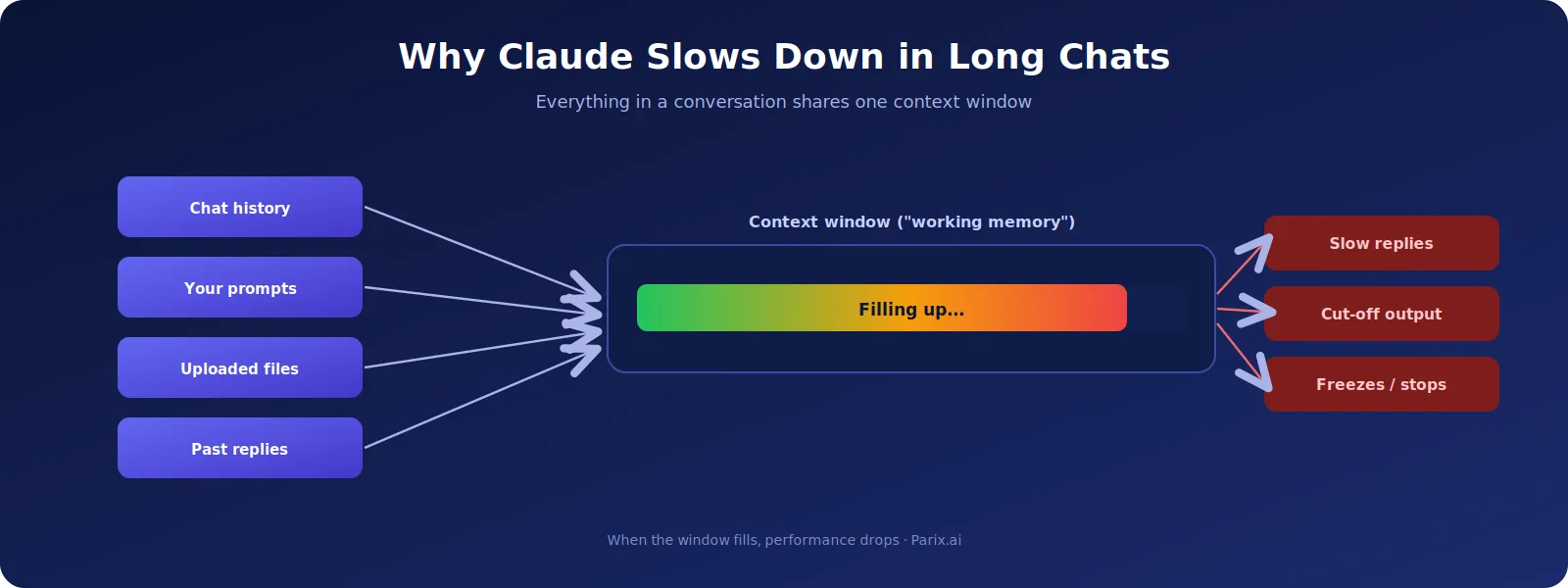
The main culprit is an overloaded context window. Claude doesn’t just read your latest message — it re-reads the whole conversation each time: your earlier messages, its own previous replies, any uploaded files, and every instruction along the way. Anthropic’s own documentation on context windows explains that this is how the model keeps track of everything and stays coherent.
That re-reading is what makes Claude feel so context-aware, but it has a cost. The longer a chat gets, the more there is to process every single turn — which can lead to slower replies, lower accuracy, repeated answers, incomplete outputs, or generation that just stops partway through. Big file uploads and very long prompts make it worse, because they eat into the same shared space.
What is a context window (and what are tokens)?
A context window is simply all the information Claude can “see” at once — your prompts, its responses, uploaded files, and the running conversation history. Think of it as working memory. Claude’s window is large, but it isn’t infinite, and a long, file-heavy chat gradually fills it until performance starts to suffer.
Inside that window, everything is measured in tokens — small chunks of text (a word, part of a word, or a punctuation mark). Both your messages and Claude’s replies consume them. Short prompts use few tokens; long articles, big files, and code-heavy chats use a lot, and that total only grows as the conversation continues.
It’s worth noting that newer Claude models have very large context windows, far bigger than a year or two ago. That helps a lot, but it doesn’t make the problem disappear. A window that’s big enough to hold an entire book can still get clogged with stale history, redundant files, and repeated instructions — and a cluttered window also tends to dilute response quality even when it isn’t completely full. So the habits below matter regardless of how large the window technically is.
Common causes of slowdowns
A few everyday habits are usually behind the problem:
- Marathon conversations: keeping one chat open for hours or days, like writing a whole book or building an app in a single thread.
- Large file uploads: big PDFs, spreadsheets, or codebases that Claude re-reads on every turn.
- Overloaded prompts: cramming “write, summarize, optimize, add keywords, and make FAQs” into one request.
- Endless edits: dozens of “rewrite this / shorten that / change the tone” tweaks piling onto one thread.
- Peak hours: heavy traffic on the platform can add delays on top of everything else.
Signs you’re overloading Claude
You can usually feel it before it fully breaks. Watch for replies that arrive noticeably slower than before, outputs that stop halfway, Claude forgetting or mixing up earlier instructions, generation that freezes, or answers that turn vague and repetitive. When you see these, pushing on in the same chat rarely helps, and often makes it worse.
Claude response not loading
Sometimes the reply does not arrive at all. The message area stays blank, or you see “this response didn’t load” where the answer should be. This is different from a reply that starts and then stops.
Start by refreshing the page. A reply that failed to render will often appear once the page reloads, because the response may have completed on Claude’s side even though your browser never displayed it.
If refreshing does not bring it back, send a short message such as “please continue” in the same chat. If that also fails, open a new conversation and paste only the context you need.
Browser extensions, ad blockers, and strict privacy settings can interfere with the connection that streams the reply to your screen. If responses repeatedly fail to load, try the same prompt in a private window with extensions disabled. That tells you quickly whether the problem is Claude or your browser.
What to do when Claude will not continue the response
A reply that stops halfway is not always lost. In most cases Claude can pick up where it left off, if you ask in the right way.
Send a short, specific instruction such as “continue from where you stopped” or “continue the last paragraph”. Avoid re-sending the original prompt, because that makes Claude start again from the beginning and consumes the context window twice over.
If Claude continues but repeats itself, paste the last two or three lines of the truncated output and ask it to carry on from exactly that point. Giving it the seam to work from is more reliable than asking it to remember.
If it will not continue after two attempts, the conversation is probably too heavy. Copy what you have into a new chat, add a one-paragraph summary of what you are trying to produce, and ask Claude to finish from there.
Quick reference: which Claude message means what
| What you see | What it means | First thing to try |
|---|---|---|
| Response incomplete | The answer started but stopped before finishing | Save what appeared, retry once, then start a fresh chat |
| This response didn’t load | The reply never rendered in your browser | Refresh the page, then try a private window without extensions |
| A previous response is still running | Claude thinks an earlier reply is still active | Wait for it to clear or reload the chat before sending anything new |
| Claude is not responding | No reply at all in this conversation | Test a simple prompt in a new chat to see if it is the chat or the service |
| Very slow replies | The context window is heavily loaded | Move the task to a fresh chat with a short summary |
How to fix it: practical solutions
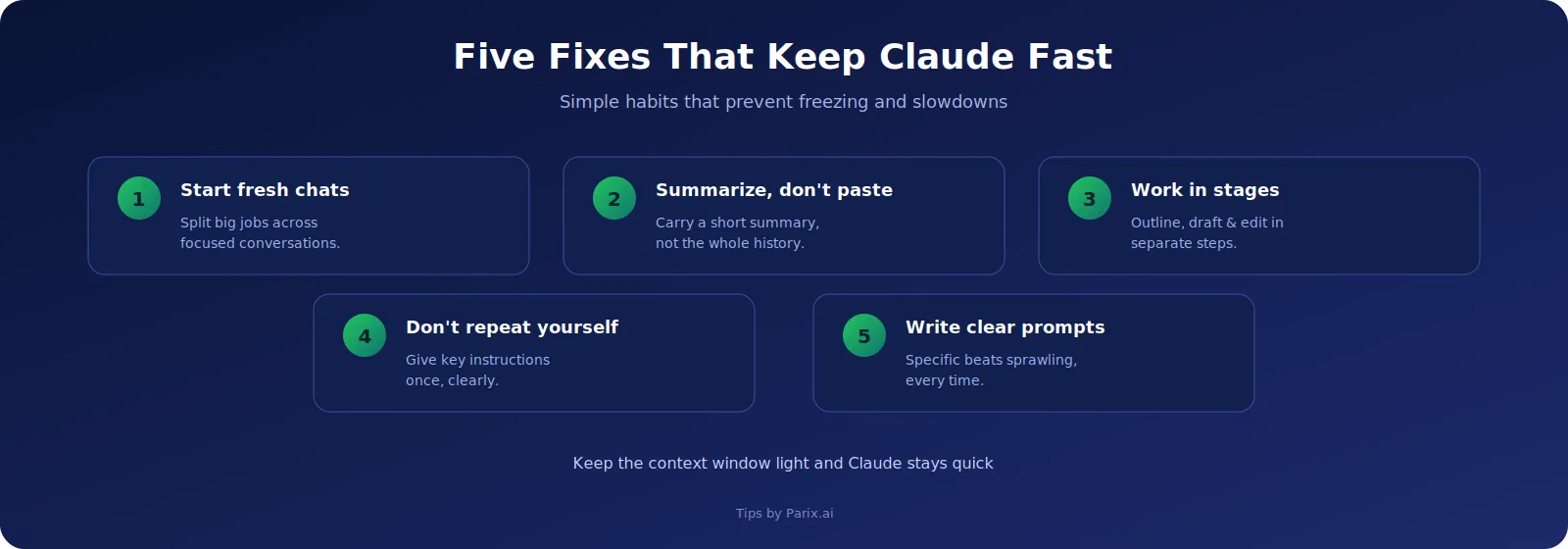
Start fresh chats more often. The single most effective fix is to stop running everything in one endless thread. Split a big job across several focused chats — one for outlining, one for drafting, one for editing — and you’ll get faster, sharper responses. If you keep bumping into limits, our guide on using Claude without hitting session limits goes deeper on saving tokens.
Use summaries, not full histories. Instead of pasting an entire old conversation into a new one (which drags all that token weight with it), paste a short summary of just what matters — for example, “Continue the article using the same structure and tone as before.” It keeps the new chat light and quick.
Break big projects into stages. Rather than one giant prompt, work in steps: outline first, generate one section at a time, edit each separately, then assemble everything outside Claude. This keeps every individual chat small and stable, which is the same logic behind turning AI output into finished work in our piece on making AI notes actually useful.
Don’t repeat instructions. Many people re-send “write naturally, optimize for SEO, keep it readable” over and over. Each repeat adds to the context for no benefit. Give your key instructions once, clearly, and trust Claude to hold them within a reasonably scoped chat. (If you’re not sure your prompt is clear enough, our free AI Prompt Checker scores any prompt and shows you what’s missing before you send it.)
Write clear, specific prompts. A focused prompt like “Write a 300-word explanation of why Claude slows down in long chats, in simple language” beats a sprawling, multi-part request every time. Anthropic’s prompt engineering guide is a great reference for structuring prompts that get clean results the first time.
The best workflow for long Claude projects
If you do a lot of long-form work with Claude, a simple staged workflow beats one endless conversation almost every time. Break the project into four clear phases and keep each in its own lightweight chat.
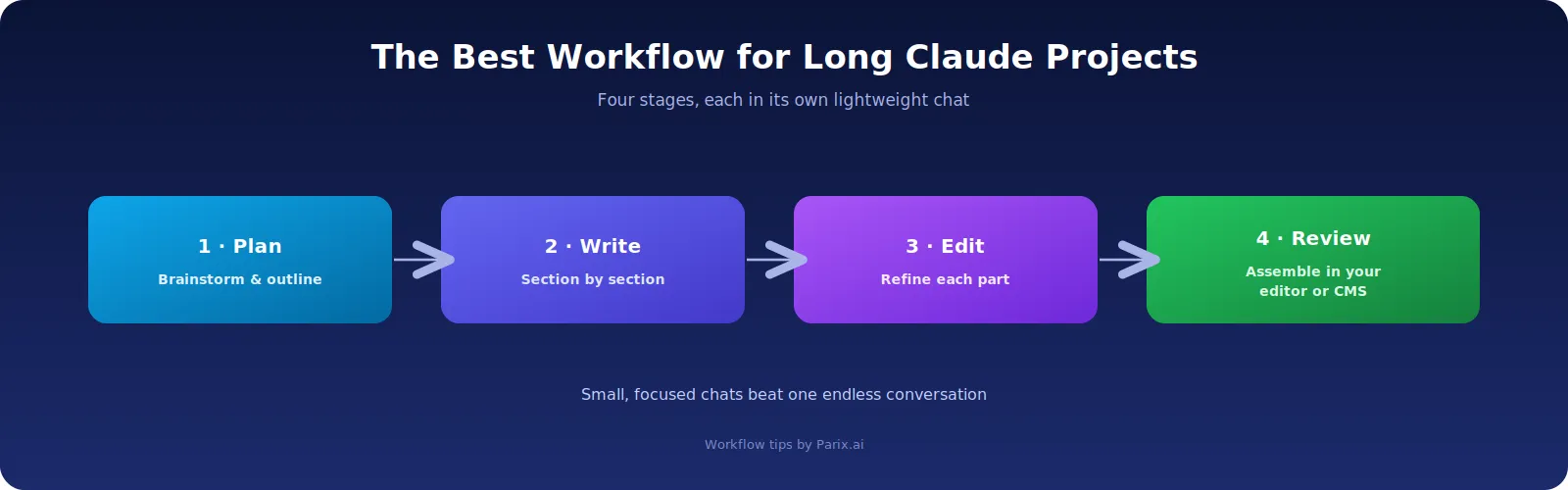
- Plan: use Claude for brainstorming, outlining, and structuring the work.
- Write: generate content in smaller sections rather than all at once.
- Edit: refine each section separately for clarity, tone, and structure.
- Review & assemble: combine and finalize everything in your own editor or CMS.
It feels slightly less convenient than one big chat, but it’s far more reliable, and the quality is consistently better because Claude never has to wade through a bloated thread to do simple work.
How businesses can use Claude more efficiently
Teams lean on AI for content, support, coding, research, and more — but many use it inefficiently, which quietly burns tokens and slows everything down. The fix at a company level is the same as for individuals, just more deliberate: keep AI tasks small and focused, reuse proven prompts, store documents outside the chat, and connect the steps with automation. That last part is where thoughtful AI integration pays off.
Better still, a lot of the repetitive “babysitting” of AI can be removed entirely. Instead of a person manually shuttling text between chats and tools — re-pasting context, restarting stalled chats, copying outputs from one place to another — a proper workflow automation setup can route tasks, summaries, and outputs automatically, keeping each AI step lean by design. This is exactly the kind of thing we build for teams at Parix.ai: reliable AI workflows that don’t stall halfway through a job. If you want to see what’s possible, our free AI tools are a good place to start.
The broader principle — that efficiency comes from structure rather than just raw usage — is one we explore in our guide to AI-powered workflow automation. The businesses getting the most from AI in 2026 aren’t the ones using it the most; they’re the ones using it the most intelligently.
Claude response incomplete
If Claude shows response incomplete, it means the answer stopped before it finished. This can happen during a long conversation, after a large prompt, when files are attached, or because of a temporary Claude service issue.
First, save any useful part of the answer that already appeared. Then retry the response once. If Claude keeps saying response incomplete in the same chat, avoid adding more instructions to that conversation. Start a new chat and provide only the context Claude needs to continue the task.
If the same problem happens in several new chats, the issue may be on Anthropic servers rather than with your prompt. In that case, repeatedly changing or resending the prompt may not fix the problem.
A response incomplete message does not tell you the exact cause. It simply means Claude did not finish generating or displaying the full response.
Why is Claude taking so long to respond
If Claude is taking much longer than usual to respond, first check whether the problem happens only in one conversation.
Long chats, large documents, code, repeated instructions, and complex prompts can make Claude slower because it has more context to process before answering.
If only one conversation is slow, move the task to a fresh chat. Give Claude a short summary of the important information instead of copying the entire conversation history. This gives Claude less unnecessary context to process.
If Claude is also slow in a new chat with a simple prompt, refresh the page and test another browser or internet connection. A temporary Claude service issue may also be causing the delay.
There is no fixed answer for how long Claude takes to respond. Response time can vary depending on the request, conversation size, attached files, tools being used, and current service conditions.
Claude is not responding
If Claude is not responding, open a new chat and send a simple prompt.
If the new chat works, the original conversation may be stuck or carrying too much context. Copy only the important information from the old chat and continue the task in a fresh conversation.
If Claude is not answering in new chats either, refresh the page and try another browser or internet connection.
If Claude shows a previous response is still running, Claude may still consider an earlier response active. Resolve that issue before repeatedly sending new messages in the same conversation.
If the problem appears across several different chats, the cause may be on the Claude service side rather than with your prompt or conversation.
In that situation, repeatedly sending the same prompt is unlikely to help. Save any important work you already have and try again once the service is responding normally.
One more possibility if you work in Claude Code or Claude Desktop with MCP servers connected: a server can report itself as connected while its tools never actually load, which looks exactly like Claude ignoring what you asked. Our MCP server checklist explains how to tell the two apart. If the server will not connect at all, our MCP “failed to connect” error guide matches each error message to its fix.
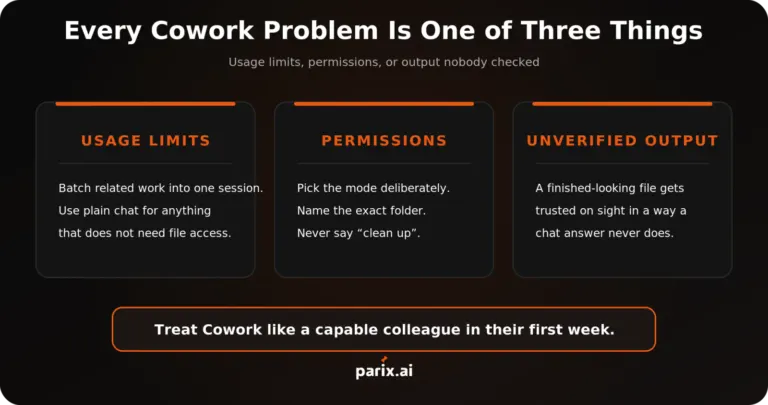
Working in Claude Cowork rather than a chat? It stalls for its own reasons, from usage limits to the Windows sandbox error, and Claude Cowork not working: 9 common problems and fixes covers each one.
Conclusion
When Claude stops responding in a long chat, it’s almost always context overload — too much history, too many files, or prompts trying to do everything at once. Keep your conversations focused, work in stages, and write clear prompts, and Claude stays fast, accurate, and reliable.
None of this requires technical skill — just a little discipline about how you run your chats. And if you’d like help building efficient, automated AI workflows for your team, so nobody has to babysit a chat window again, get in touch with Parix.ai.
FAQs
Why does Claude stop responding in long conversations?
Usually because the context window is overloaded. Claude re-reads the entire conversation each turn, so very long chats, big files, and heavy prompts can slow it down or cause it to cut off. Starting a fresh, focused chat normally fixes it.
What is a context window in Claude?
It’s all the information Claude can consider at once — your prompts, its replies, uploaded files, and the conversation history. It works like working memory: large, but finite, and it fills up as a chat grows.
What are tokens?
Tokens are the small chunks of text Claude processes, roughly words or parts of words. Both your messages and Claude’s responses use tokens, and longer conversations consume more of them, which is what eventually slows things down.
How do I stop Claude from freezing or cutting off?
Start new chats for new tasks, use short summaries instead of pasting full histories, break big projects into stages, avoid repeating instructions, and keep prompts clear and specific.
Does uploading large files slow Claude down?
It can. Large files are re-read on each turn and consume a big share of the context window. Upload only what’s needed for the current task, and start a fresh chat when you move on.
Why does Claude say “this response didn’t load”?
The reply failed to render in your browser, which is different from a reply that stopped partway. Refresh the page first, since the response may have completed on Claude’s side. If it keeps happening, test the same prompt in a private window with extensions disabled.