How to Use Claude Cowork to Automate Your Daily Business Tasks (2026)
Be honest with yourself for a second. How much of your week vanishes into work that doesn’t really need your brain at all? Renaming files. Copying numbers off receipts into a spreadsheet. Tidying a folder that’s turned into a junk drawer. Rewriting the same document for the third time because the formatting went sideways. None of it’s hard. It’s just there, every day, quietly eating the hours you’d much rather spend on the work that actually matters.
That pile of nothing-tasks is exactly what Claude Cowork was built to take off your hands. And if the only Claude you’ve met is the chatbot, brace yourself, because Cowork is a genuinely different animal. This guide runs through what it is, how you actually use it, and which daily business tasks you can just hand over and forget about in 2026.
So What Is Claude Cowork, Really?
Simplest way I can put it: regular Claude tells you how to do a thing. Cowork goes and does it.
It’s Anthropic’s desktop app for people who aren’t developers, and it landed in January 2026. A normal chat is a back-and-forth, you ask, it answers, you ask again. Cowork isn’t that. It behaves more like a coworker you delegate to. You give it a folder on your computer, tell it what you want in plain English, and it disappears off to do the job, on your actual machine, with your actual files, while you go do literally anything else.
Most people settle into the same rhythm without even meaning to. Chat when you’re thinking something through. Cowork when you want it done. One’s a conversation. The other is handing off a task and wandering away to get a coffee.
How It Actually Works
There’s nothing technical to learn here, which is sort of the entire point of the thing. You give Cowork a folder to work in and describe the task the same way you’d explain it to a new hire. It thinks for a moment, comes back with a plan of what it’s about to do, and waits for you to say go. You approve it, it runs, and then you come back to finished work.
How long it takes depends on the size of the job. A quick tidy-up might be a couple of minutes. Something meatier could run for the better part of an hour. Either way you’re not babysitting it. No command line, no nightmare setup wizard, no learning a whole new piece of software back to front. And it all happens locally, so your files stay sitting on your own computer rather than getting shipped off somewhere you can’t see.
The Daily Business Tasks You Can Hand Off
Right, the bit everyone actually wants. What can it take off your plate?
The honest answer is most of the boring stuff that quietly clogs up a working day. Tell it to organise your Downloads folder by type and date and it’ll do it properly, not the half-finished job you’d do at 5pm on a Friday. Drop in a heap of receipt screenshots and ask for an expense sheet, and it’ll read them, pull out the numbers, and build the table for you. It’ll draft reports and summaries and that proposal you’ve been avoiding, working from your existing files instead of a blank page staring back at you. Point it at a stack of PDFs and it’ll compile the key findings into one tidy document. And it’ll grind through the admin nobody enjoys, the project board updates, the batch file renaming, the reorganising of directories that have quietly descended into chaos.
If you run a small team and you’ve been meaning to get your repetitive processes under control, this is the same ground our guide to no-code AI automation covers, just happening on your desktop rather than through a separate platform.
Scheduling Tasks So They Just Run on Their Own
Here’s where it stops being a helper and starts being properly hands-off. You can set tasks to run by themselves, once on a timer or over and over on a schedule.
Type /schedule inside any task, or pop open the “Scheduled” tab in the sidebar, and you can have things fire on their own. A weekly report that builds itself first thing every Friday. A folder that gets cleaned out every night while you sleep. There’s one catch worth remembering: scheduled tasks only run while your computer’s awake and the Claude desktop app is open. It isn’t sitting on some cloud server humming away in the background. It runs on your machine, so your machine has to be on.
For a lot of small businesses, that single feature quietly knocks a chunk off someone’s weekly to-do list, the kind of chunk you stop even noticing once it’s gone. If you are still assembling a stack around it, start with the free AI tools worth a small business’s time.
Folders, Projects and Plugins (Where It Gets Smarter)
A few features are worth knowing once you’re past the basics, because they’re the difference between “neat trick” and “I genuinely lean on this every day.”
Folder instructions let you bake context straight into a folder, so every time Cowork works in there it already knows your rules without being told again. Projects take it further, giving you a persistent workspace that holds your files, your custom instructions, and project-specific memory all in one place, so Claude opens it already knowing what you’re building and how you like things done. No re-explaining yourself every single morning like you’re training a goldfish.
Then you’ve got plugins, which bundle up skills, connectors and sub-agents for a particular role or team. Legal teams, funnily enough, have turned into some of the heaviest Cowork users going, precisely because there are plugins built around how they actually work day to day. Whatever line of business you’re in, getting your tools to talk to each other follows the same logic we dig into in our piece on AI-powered workflow automation.
Getting Started Without Overthinking It
You don’t need some grand rollout plan. Truthfully, the best way in is to grab one task that annoys you and just hand it over.
Open the Claude desktop app, point Cowork at a single folder, and give it something low-stakes to chew on, the messy Downloads folder, a few receipts to turn into a spreadsheet, whatever. Watch how it plans the job out, approve it, and see what comes back. Once you’ve seen it finish one real task with your own eyes, you’ll start spotting things to delegate everywhere you look. That’s pretty much how everyone ends up running half their admin through it within a week or two.
One habit worth picking up: every time you catch yourself doing something tedious, pause and ask whether Cowork could handle it instead. Then push it one step further and ask whether it could work out the steps without you spelling every one out. That second question is where the real time savings tend to hide.
Where It Genuinely Helps Small Businesses
For a small business or a lean team, the pull isn’t “ooh, AI.” It’s that you probably can’t justify hiring someone purely to deal with admin, and you definitely can’t keep doing it all yourself when that time should be going into actually growing the thing.
Cowork drops neatly into that gap. It takes the repetitive, predictable, file-and-document side of running a business off your people so they can stay on the work that brings money through the door. If you want a real sense of what those hours are worth, our AI automation cost calculator lets you put an actual number on the time you’d win back.
The Honest Limitations
I’d sooner flag the rough edges now than let you trip over them later.
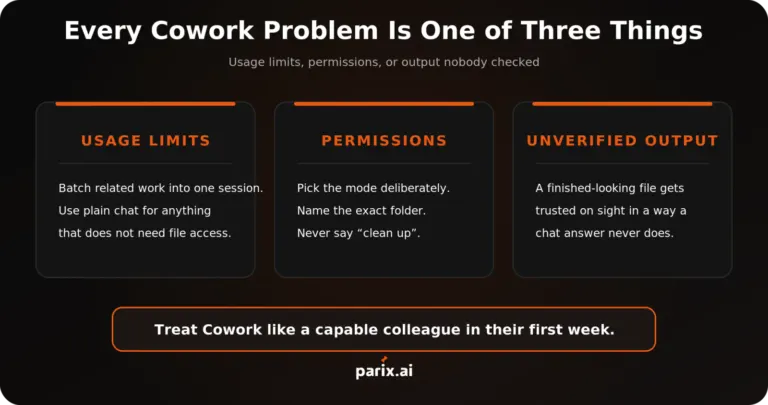
It’s still a research preview, so yes, it’ll occasionally stumble. It also burns through more of your Claude usage than ordinary chatting does, simply because running multi-step work is heavier than answering a question. And it makes you approve its plan before it acts, which is great for peace of mind but does mean it isn’t truly “set it and forget it” for anything sensitive. Treat it like a sharp junior teammate. Brilliant when the instructions are clear, still worth a glance before you trust it with the important stuff.
It’s also not the answer to everything. Properly complex, business-critical automation that stitches a load of systems together is a different beast entirely, the sort where a botched job costs you more than it ever saves. We got into exactly that in why AI automation projects fail after launch, and nearly all those failures trace back to bad scoping rather than the tools themselves.
When to Bring in Help
Cowork’s a gem for the day-to-day stuff you can rattle off in a sentence. But the moment you’re trying to automate processes spread across several apps, your CRM, your invoicing, your customer data, all needing to talk to each other reliably, that’s a build, not a desktop chore.
That’s the point where it pays to have a proper system designed around the way your business actually runs. Our workflow automation services handle precisely that, from mapping out your processes to wiring it all together so the whole thing just ticks along in the background.
Final Thoughts
Claude Cowork is one of those tools that sounds like hype right up until you watch it quietly polish off a task you’d been dreading, and then the penny drops. It won’t replace your judgement, or your relationships, or the parts of the job that genuinely need you in the room. What it’ll do is lift the daily admin grind off your shoulders so you stop pouring your sharpest hours into your most forgettable work.
Start small. Pick one tedious thing this week and hand it over. If it buys you back even an hour, that’s an hour a week, every week, for as long as you keep using it, and that stacks up a lot quicker than you’d think.
Want to try before you commit? Our free Prompt Builder helps you write the kind of structured prompt Claude Cowork responds to best.